Many WordPress site owners keep publishing content for months but still aren’t sure if their SEO is actually working.
The tricky part is that the results are usually already there but they’re just not always easy to notice at first glance.
Instead of appearing in one obvious place, SEO performance shows up across different areas of your site. You can spot it through clear signals like organic traffic, keyword rankings, indexed pages, click-through rates, and conversions.
In this guide, I’ll show you how to check if your SEO is working and measure your SEO progress on your site using tools like MonsterInsights, AIOSEO, and Google Search Console.
💡 Quick 2-Minute Check to See If Your WordPress SEO Is Working
If you just want a quick check-up of your SEO performance, you don’t need tools or deep reports yet. Start by answering these simple questions:
- Are you getting any organic traffic from search engines like Google Search?
- Are your pages indexed and appearing in search results?
- Are your keywords showing up in search results at all?
If you can answer ‘yes’ to at least one of these, then your SEO is already working in some way.
If not, it simply means you still need to focus on the basics, and the rest of this guide will help you fix that step by step.
What Does ‘SEO Working’ Actually Mean?
When people ask whether their SEO is working, they’re usually expecting a single clear answer. But in reality, SEO success shows up in a few different areas at the same time.
I’ve found it’s less about one big result and more about steady progress across your content and visibility.
Here are the main signs that your SEO is actually working:
- Your Organic Traffic is Slowly Increasing: You start getting more visitors from search engines over time. It may not jump overnight, but the trend moves upward.
- Your Pages are Appearing in Google Search Results: This means your content is getting indexed properly and showing up when people search for related topics.
- Your Keyword Rankings are Improving: Your posts begin to move higher in search results for the terms you’re targeting. Even moving from page 3 to page 2 is a positive signal.
- More People are Clicking Your Search Listings: This is your click-through rate (CTR). It tells you that your titles and meta descriptions are compelling enough to attract clicks.
- Visitors are Taking Action on Your Site: This could be signing up for your email list, filling out a contact form, or making a purchase.
The main thing to remember is this: you don’t need to see all of these factors improving at the same time or in big numbers. If even a few of them are moving in the right direction, then your SEO is working and building momentum over time.
5 Easy Ways to Check If Your SEO Is Working
Now that you know what ‘SEO working’ actually looks like, let’s get into the practical part: how to check it on your own website.
The good news is that you don’t need to guess or rely on assumptions. You can actually see clear SEO signals using a few simple tools and reports.
I have broken this down into 5 easy checks that give a pretty accurate picture of what’s happening behind the scenes. These are beginner-friendly, and you can do them even if you’re not very technical:
- Track Organic Traffic Growth Over Time
- Verify Your Pages Are Indexed in Google
- Monitor Your Target Keyword Rankings
- Analyze Your Organic Click-Through Rate (CTR)
- Measure SEO-Driven Conversions and Goals (Conversions)
- 💡Simple Monthly SEO Checklist
- How Long Does SEO Take to Work?
- Frequently Asked Questions About Website SEO
1. Track Organic Traffic Growth Over Time
Organic traffic is simply the visitors who land on your website from search engines like Google Search without you paying for ads. So if someone searches for a topic, clicks your post, and visits your site, that’s organic traffic.
This is usually the first and most important SEO signal because it tells you one simple thing:
Are people actually finding your site through search?
To make this easier, here’s an idea of what healthy organic traffic can look like for different types of websites:
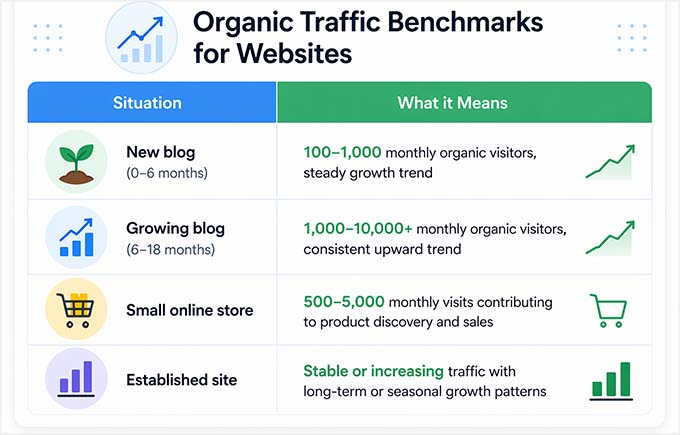
If this number is going up over time, then it usually means your content is getting more visibility, and your SEO strategy is moving in the right direction.
💡 Expert Tip: Organic search is still the main source of traffic, but search is evolving. Some websites are also starting to get traffic from AI platforms like ChatGPT and Perplexity.
This is part of a newer strategy called GEO (Generative Engine Optimization), which focuses on making content easier for AI systems to understand and surface in answers.
To prepare your site for visibility AI-generated answers, see our guide on Generative Engine Optimization.
See Your Organic Traffic With MonsterInsights
You can track your organic traffic using Google Analytics, which is one of the most popular and free tools for website analytics.
Inside Google Analytics, you’ll need to explore reports and filter traffic sources to find your organic search data. While it’s very powerful, it can feel overwhelming for beginners because there are multiple menus, reports, and settings to navigate.
That’s why I recommend MonsterInsights instead.
We use MonsterInsights across WPBeginner because it is the best analytics solution for WordPress.
It connects directly with Google Analytics but simplifies everything by showing your most important SEO and traffic data inside your WordPress dashboard.
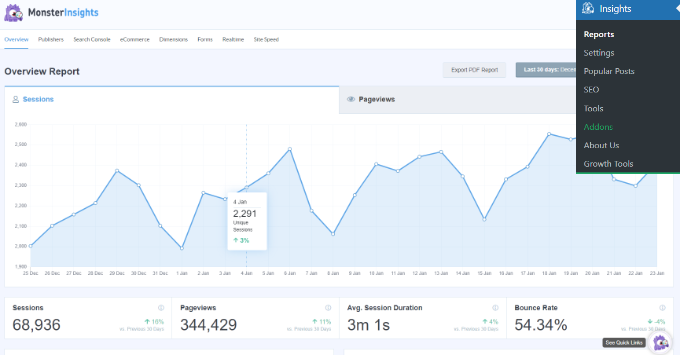
Once MonsterInsights is installed and connected to Google Analytics, go to Insights » Reports in your WordPress dashboard, where you will see an ‘Overview Report.’
This gives you a simple breakdown of your website traffic, including how much is coming from organic search.
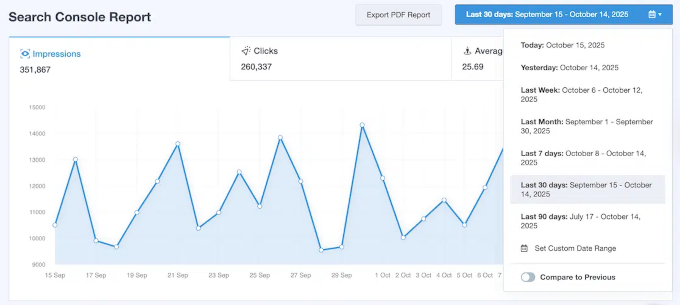
If you want deeper SEO insights, switch to the ‘Search Console‘ tab from the top (available in Pro).
This report shows:
- Top search queries bringing visitors
- Clicks and impressions from Google
- Click-through rate (CTR)
- Average keyword position
It is one of the easiest ways to understand what people are searching for before landing on your site.
MonsterInsights also includes an AI Traffic report, which helps you track visitors coming from AI platforms like ChatGPT and other AI tools.
This is especially useful if your content is being discovered through AI-powered recommendations or answers.
To access it, go to Insights » Reports in your WordPress dashboard, then switch to the Traffic » AI Traffic tab from the top.
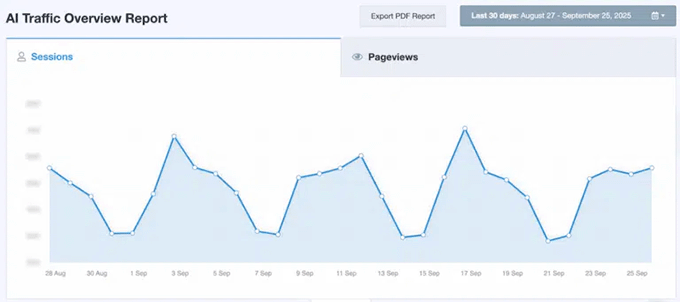
How to Check Organic Traffic in Google Analytics
If you prefer to use Google Analytics directly, then you can find your organic traffic there with just a few clicks. Once you know where to look, it’s pretty straightforward.
First, log in to your Google Analytics account and select your website. Then, go to Reports » Acquisition » Traffic acquisition.
Here, you’ll see a table showing different traffic sources. Look for the row labeled ‘Organic Search.’
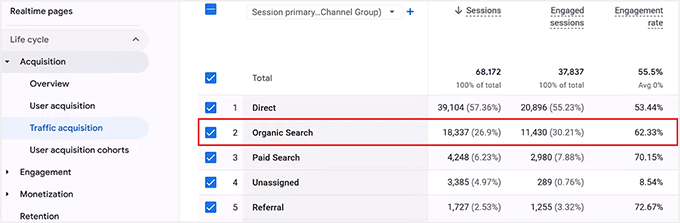
This shows exactly how many visitors are coming to your site from search engines like Google.
You can also click on ‘Organic Search’ to get more detailed insights, like which pages are getting traffic and how users are interacting with your content.
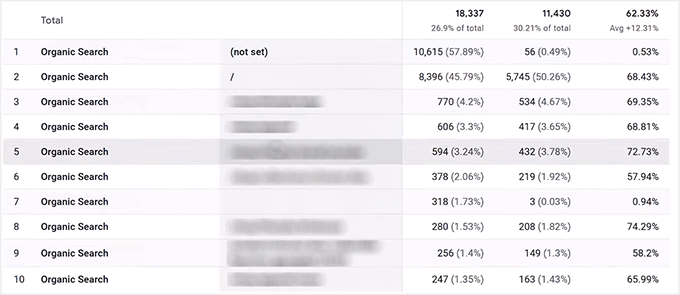
While this method is powerful, it does require a bit more navigation compared to MonsterInsights. This is why many beginners prefer seeing this data directly inside their WordPress dashboards.
What Your Traffic Data Means
Once you open your reports in MonsterInsights or Google Analytics, you’ll usually see a trend line showing whether your traffic is going up, staying flat, or going down.
To make this easier to understand, here’s a simple breakdown of what those trends actually mean:
| Traffic trend | What it means |
|---|---|
| Traffic is growing | Your SEO is working well, and your content is gaining visibility in search engines. |
| Traffic is flat | This is normal for new sites or during periods where you’re not publishing much new content. |
| Traffic is dropping | Something may need attention, such as content quality, indexing issues, or lost rankings. |
The important thing here is not to panic over small changes. What really matters is the overall direction over time.
What Should You Do Next
If your organic traffic isn’t growing the way you expect, don’t worry. This is very common, especially for newer WordPress sites. The key is to focus on small, consistent improvements.
Here’s a simple action plan you can follow:
- Update Older Blog Posts: Refresh outdated content, improve clarity, and add new information where needed. Prioritize articles that are already ranking on page 2 or 3 of Google or that get a decent number of impressions but a low click-through rate.
- Publish New Content Regularly: Focus on topics people are actively searching for. This helps you build more entry points from search engines over time. I also recommend building content clusters around specific topics on your site.
- Improve Internal Linking: Link related posts together so search engines can better understand your site structure and users can navigate more easily.
- Target Easier Keywords First: If your site is still growing, focus on low-competition keywords to build momentum before going after harder search terms.
The goal is not to fix everything at once, but to make steady improvements that compound over time.
2. Verify Your Pages Are Indexed in Google
One of the most common SEO mistakes I see is people assuming that once you publish a post, it automatically shows up in search results. That’s not always the case.
Before your content can appear in search engines like Google Search, they need to index it. This means that search engines have discovered, analyzed, and stored your content.
If search engines haven’t indexed your pages, they simply cannot bring in any organic traffic, no matter how well you’ve written them.
To make it easier, I have added a visual that shows how indexing works.
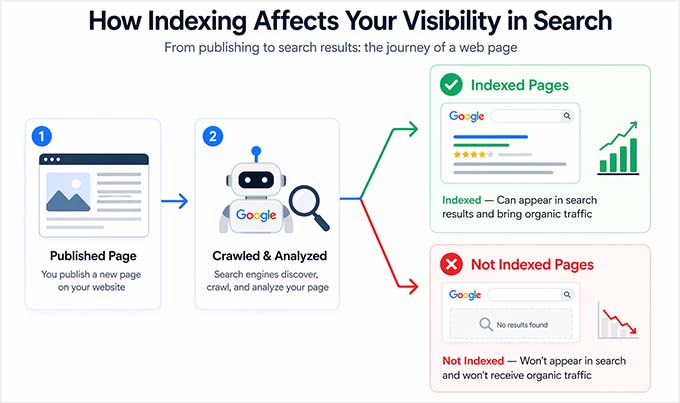
How to Check Indexing in WordPress (The Easy Way)
You can easily check the index status of your pages and posts directly inside All in One SEO, which is the best WordPress SEO plugin.
It’s a powerful yet beginner-friendly tool that not only helps you optimize your content for search engines, but also gives you clear insights into how your site is performing, right inside your WordPress dashboard.
One of its most useful features is built-in indexing insights, so you can quickly see which pages are indexed, which aren’t, and why.
We use AIOSEO across WPBeginner to improve our SEO and keep track of how our content is performing in search engines You can read our full experience in our AIOSEO review.
To check your index status, you first need to set up All in One SEO properly. Once it’s active, connect it to your Google Search Console account so it can pull indexing data directly from Google.
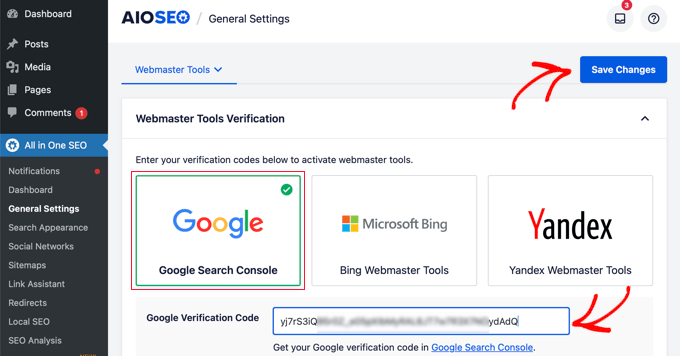
For more information on that, see our guide on getting your WordPress site listed on Google.
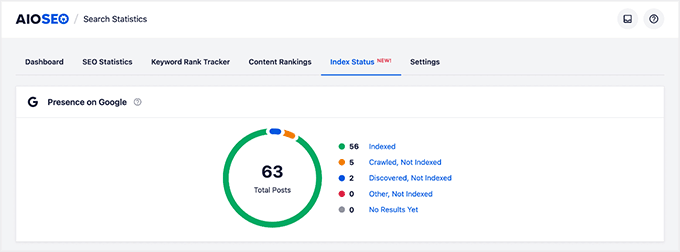
After that, go to Search Statistics » Index Status from your WordPress dashboard. This section gives you a clear overview of how search engines are indexing your website content.
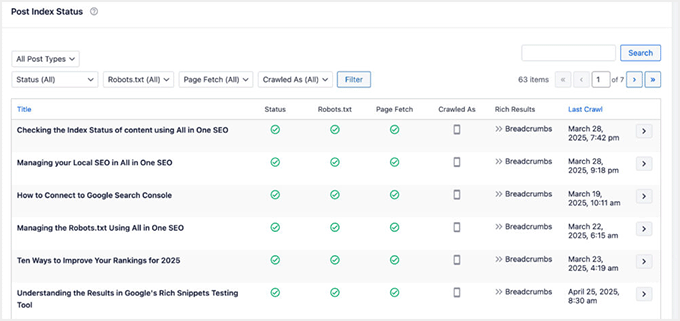
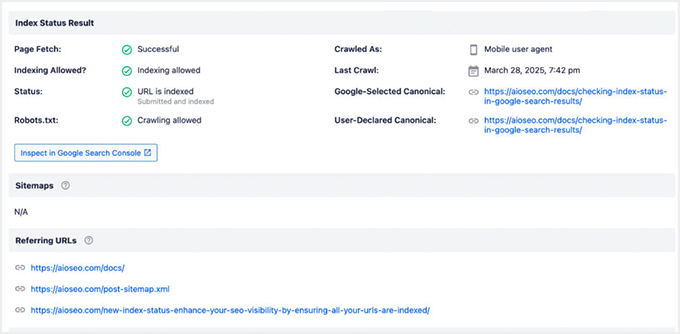
AIOSEO makes this even easier by showing the index status for each post directly on the main ‘Post Index Status’ screen.
Each post has a simple indicator that tells you whether it’s indexed or not, so you can scan your entire site at a glance without opening detailed reports for every page.
You can also expand the tab for each post or page to see detailed information about the index status pulled from Google Search Console.
AIOSEO all tells you whether the content was found through the sitemaps on your site, or through referring links from other content on your site. It also shows whether there’s any rich results for this content found by Google.
How to Check Indexing in Google Search Console
If you want to double-check indexing directly from Google, then you can use Google Search Console. I sometimes use this method when I want to confirm whether a specific page is indexed or not.
First, go to your Google Search Console account and select your website. Then, switch to the Indexing » Pages section from the left panel.
You can now use the URL Inspection tool at the top of the page. Just paste any page URL from your website into the search bar.
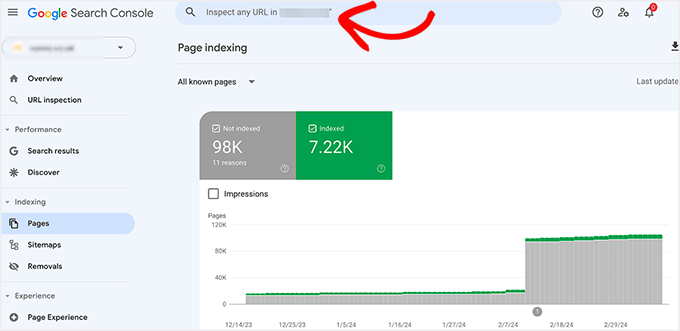
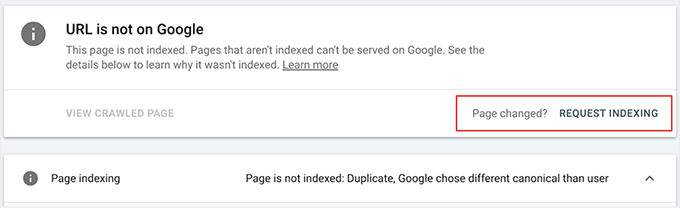
It will show you whether that page is indexed in Google or not.
If it’s not indexed yet, you can click ‘Request Indexing’ to ask Google to crawl it again.
What To Do If Pages Aren’t Being Indexed
If you notice that important pages are not being indexed, there are a few reliable ways to fix this and speed up the process.
One of the fastest methods is using IndexNow. It is an automatic ping that lets search engines know when a post or page (URL) on your website has been added, updated, or deleted.
With AIOSEO, IndexNow support is already built in, so you don’t need to install any extra plugin. Once you activate AIOSEO, simply go to AIOSEO » Feature Manager and enable the IndexNow feature.
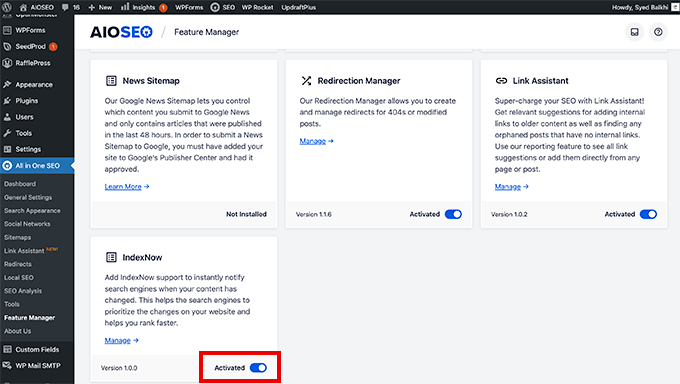
After that, everything is handled automatically in the background. AIOSEO generates and manages your IndexNow API key, so your site can instantly notify search engines when you publish or update content.
If you want a full walkthrough, I recommend seeing our tutorial on adding IndexNow in WordPress to speed up SEO results.
Another important step is submitting your sitemap to Google Search Console.
A sitemap helps search engines understand your website structure and discover all your important pages more efficiently.
To do this, log in to Search Console and select your website. Then go to the ‘Sitemaps’ section in the left menu. In the ‘Add a new sitemap’ field, enter sitemap.xml and click submit.
💡Tip: You can find your exact sitemap URL in your AIOSEO settings by going to AIOSEO » Sitemaps. The plugin will show you the correct URL to use.
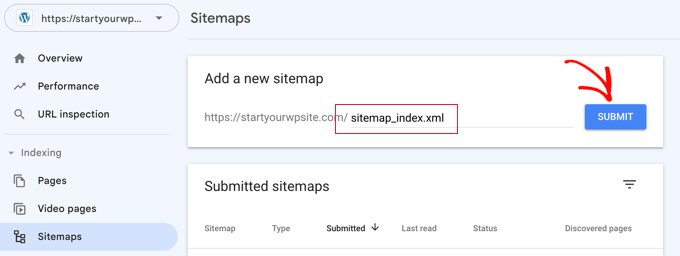
In many cases, Google will recognize this as a sitemap index file, often named sitemap_index.xml by SEO plugins. This is completely normal – it simply means Google has found your main sitemap file and is processing it correctly.
Once you submit your sitemap, Google will start crawling your site more effectively, and you can monitor indexing progress inside AIOSEO over time.
3. Monitor Your Target Keyword Rankings
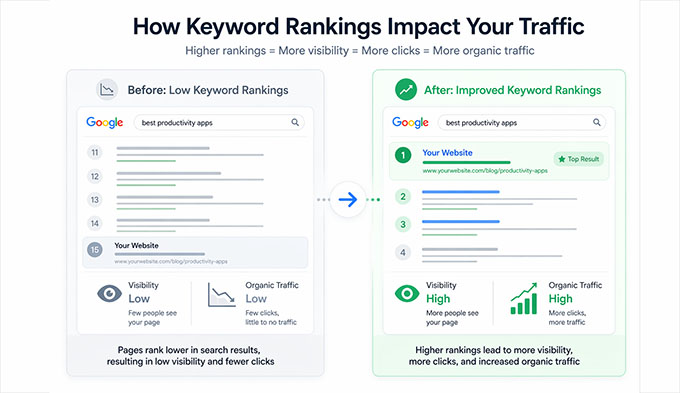
Keyword rankings tell you how well your content is performing for specific search terms in Google Search results. Basically, it shows whether your pages are moving up, staying the same, or losing visibility for the keywords you care about.
This is one of the most important SEO checks because traffic growth usually starts with better keyword rankings. If your pages start ranking higher, then more people will see them, and more clicks will follow.
How to Track Keyword Rankings in AIOSEO
One of the easiest ways to track keyword performance in WordPress is by using All in One SEO, which is a powerful keyword ranking tracker. We use it to monitor our article rankings and track SEO progress across different websites.
AIOSEO’s Search Statistics feature works like a built-in keyword rank tracker inside your WordPress dashboard. This means you don’t need separate SEO tools just to understand how your keywords are performing.
📍Note: To see these insights, you’ll first need to connect AIOSEO to your Google Search Console account. This allows the plugin to pull your ranking data directly from Google.
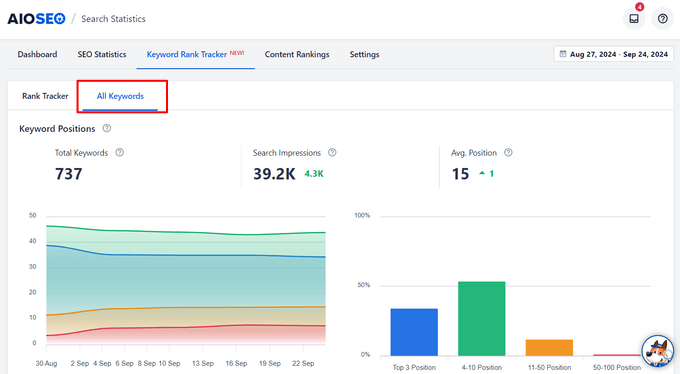
Inside the Search Statistics dashboard, you’ll find widgets like Keyword Positions and Keyword Rankings.
They give you a clear overview of how your content is ranking in search results over time.
You can manually add keywords you want to track, import them from your focus keywords, pull them from Google Search Console, or even upload them via CSV.
This makes this method flexible whether you’re tracking a few posts or managing a full content strategy.
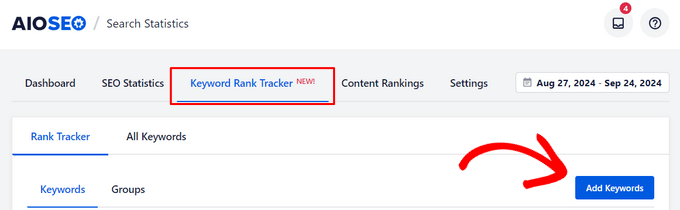
Once you add your keywords, AIOSEO shows you exactly where you rank for each term, along with helpful metrics like clicks, impressions, average click-through rate, and position history.
You can even expand individual keywords to see which specific pages are ranking for them.
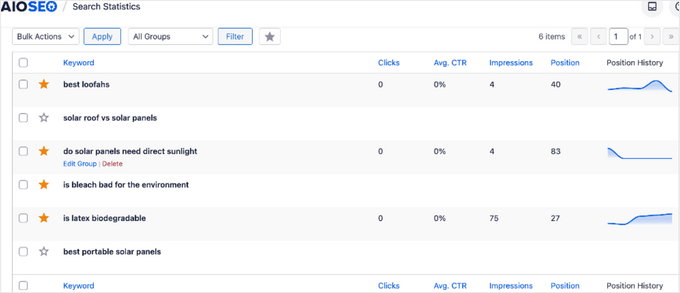
Over time, this makes it much easier to spot trends, track progress, and see which content is actually improving in search.
For step by step instructions, I suggest reading our tutorial on how to check if your WordPress blog posts are ranking for the right keywords.
What to Do if Keywords Aren’t Ranking
If your keyword rankings aren’t improving, don’t panic. This is very common, especially for newer content or competitive topics.
I recommend making small, focused improvements that give your pages a better chance to rank.
| Action | What it means | Why it helps |
|---|---|---|
| Improve Content Depth | Add more helpful information, examples, and answers to related questions. | Makes your content more complete and useful for search engines and readers. Also improves visibility in AI search systems by fully covering a topic in one place. |
| Target Easier Keywords | Focus on low-competition or long-tail keywords instead of highly competitive terms. | Gives your content a better chance to rank faster and start gaining visibility. |
| Add Internal Links | Link related blog posts and pages together within your site. | Helps search engines understand your site structure and boosts authority of important pages. |
| Build Content Clusters | Organize your content into topic groups where multiple related posts link back to a main “pillar” page. | Helps establish topical authority and makes it easier for both Google and AI systems to understand your expertise and surface your content in relevant answers. |
These tips can often lead to better rankings over time, especially when combined with regular publishing and ongoing SEO optimization.
4. Analyze Your Organic Click-Through Rate (CTR)
Click-through rate (CTR) shows how often people click your link after seeing it in Google Search results. It reflects how well your title and meta description are able to grab attention and encourage clicks.
Here’s a simple breakdown of what a “good” CTR can look like depending on the type of website:
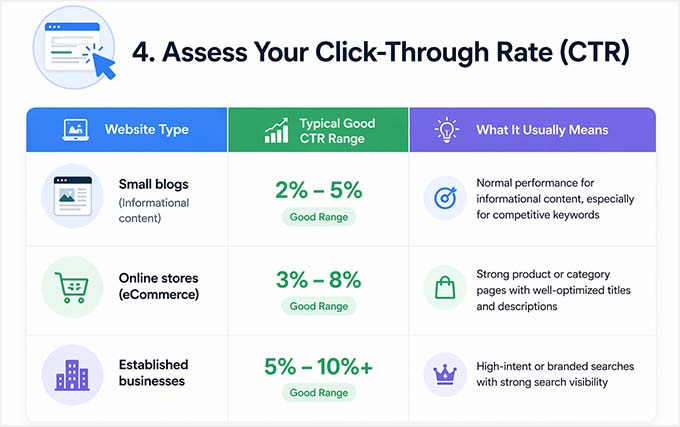
Even if your pages rank well, a low CTR can still hold back your traffic. That’s why CTR is an important SEO signal. It helps you see how your search listings are performing before users even land on your site.
How to Find CTR Data in AIOSEO
You can easily track CTR using the Search Statistics dashboard inside All in One SEO.
In the SEO Statistics report, you’ll see a clear overview of your site’s search performance for the selected date range.
This includes:
- Search Impressions – how many times your site appeared in Google search results
- Total Clicks – how many times users clicked through to your site
- Average CTR (Click-Through Rate) – the percentage of impressions that turned into clicks
- Average Position – your average ranking position in search results
All of this data comes directly from the Performance report in Google Search Console, but AIOSEO presents it in a much simpler, visual way inside WordPress.
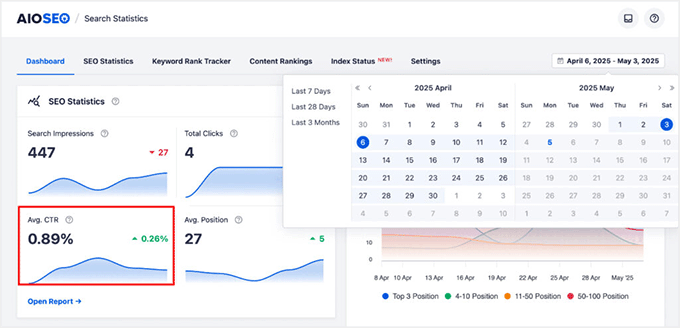
You can also hover over the graph to see how these numbers change over time for specific dates. This helps you quickly understand whether your CTR is improving or dropping without digging into multiple reports.
How to Check CTR in Google Search Console
If you want to see CTR directly from Google, then you can use Google Search Console.
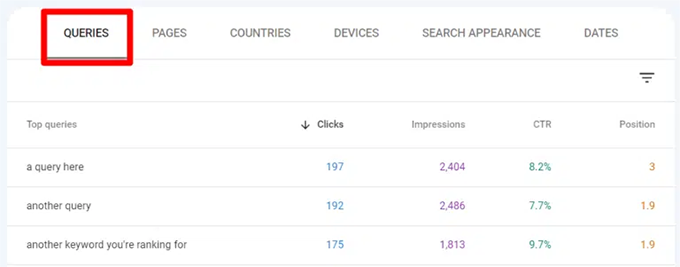
First, log in to your account and select your website property. Then, go to Performance » Search results from the left menu.
At the top of the report, you’ll see key metrics including:
- Total clicks
- Total impressions
- Average CTR
- Average position
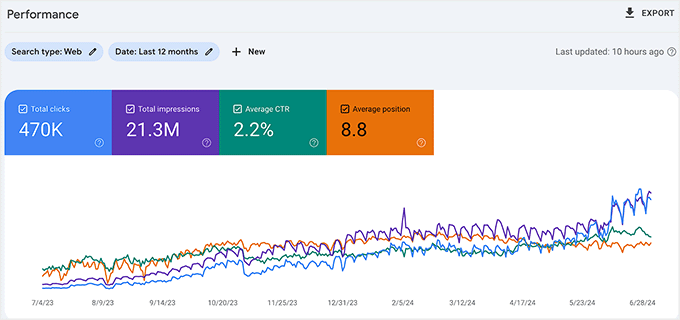
You can also scroll down to see the exact search queries and pages that are generating clicks.
This gives you a more direct view of how your site is performing in Google search results, without using any plugin.
What Does CTR Tell You?
CTR helps you understand how effective your content looks in search results, not just how well it ranks.
| Situation | What it usually means |
|---|---|
| High impressions, low CTR | Your page is showing in Google, but the title or description isn’t compelling enough |
| High CTR | Your titles and meta descriptions are attracting clicks effectively |
| Low impressions | Your pages may need better rankings before CTR becomes meaningful |
Quick Fixes to Improve CTR
If your CTR is lower than expected, you can often improve it with a few small changes. You don’t always need to change your rankings—just make your search listing more appealing.
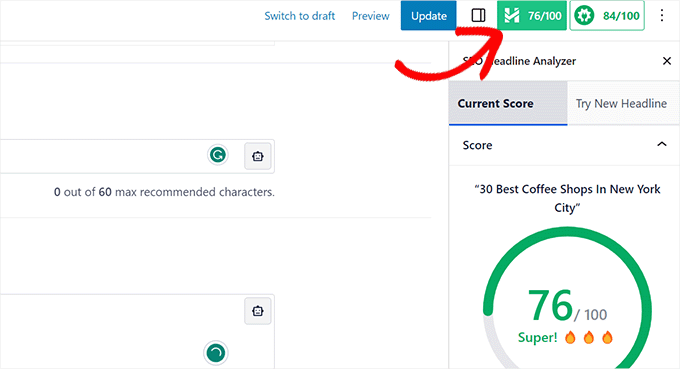
One of the easiest improvements is updating your title. Adding numbers, the current year, or a clear benefit can instantly make your result more clickable. For example, “10 Easy Ways…” or “Best Guide for 2026…” tends to perform better in search results.
Thankfully, AIOSEO comes with a headline analyzer, which gives a score and some practical tips for improving your post or page title.
Next, rewrite your meta description so it clearly explains what the page offers and why someone should click it. Think of it as a short “preview” that convinces users your page has the answer they’re looking for.
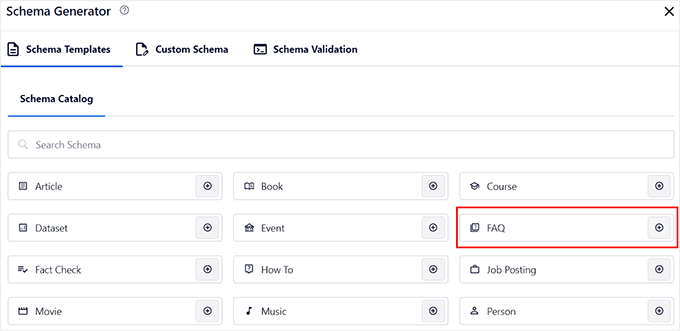
Make sure you’re also adding schema markup with AIOSEO where possible. This helps your listings stand out in search results with rich snippets like ratings, or FAQs.
For more tips and tricks, I recommend going through our guide on improving organic click-through rate in WordPress.
5. Measure SEO-Driven Conversions and Goals (Conversions)
It’s wise to measure traffic, but it’s only half the story.
The real SEO success comes when visitors actually take action on your site, like signing up, buying a product, or submitting a form. These actions are called conversions.
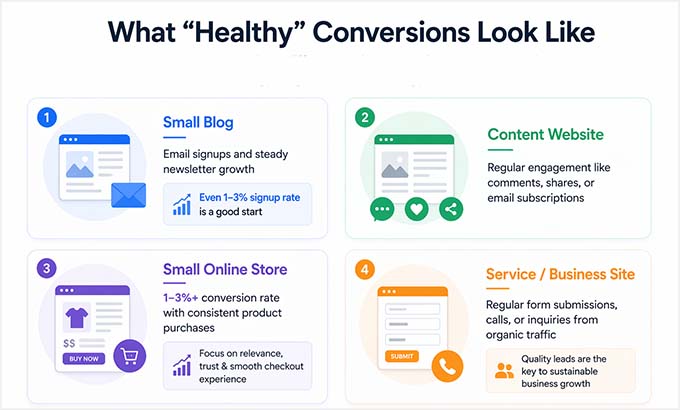
Before you start tracking details, it helps to know what “healthy” conversion performance can look like depending on your website type:
How to Track Conversions With MonsterInsights
The easiest way to track conversions in WordPress is using MonsterInsights, which connects your site to Google Analytics.
One of the biggest advantages of MonsterInsights is its eCommerce addon. It makes it extremely simple to track product performance, revenue, and purchase behavior inside your WordPress dashboard.
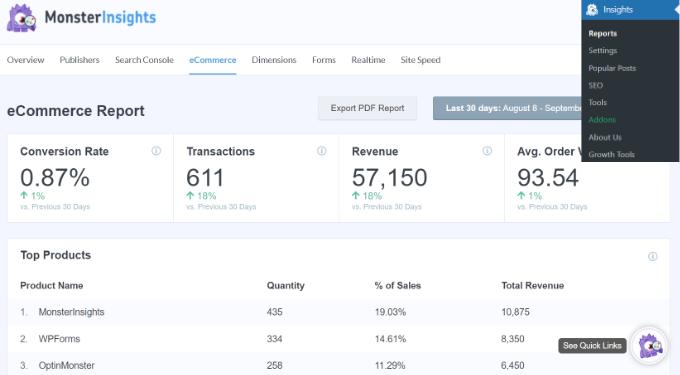
This is super powerful because you can quickly see which products are generating sales, which traffic sources are converting best, and how users move through your buying process.
MonsterInsights also lets you track submissions using its Forms addon. It allows you to see which forms are getting the most views, how many submissions each form receives, and which forms are converting better than others.
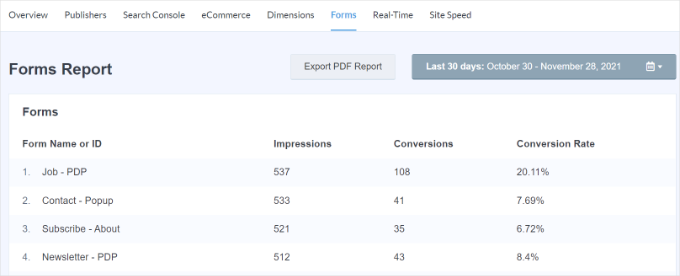
I love how the plugin gives you a clean, easy-to-understand overview of how visitors interact with your site and which actions are actually driving results.
For detailed instructions, please take a look at our WordPress conversion tracking guide.
How to Track Conversions in Google Analytics
If you prefer to track conversions directly in Google Analytics, then log in to your account and select your website. Then, go to Reports » Engagement » Conversions (or Events, depending on your setup).
Here, you’ll see different user actions that Google tracks as events, such as:
- Form submissions
- Button clicks
- Purchases (for eCommerce sites)
- Sign-ups or other key actions
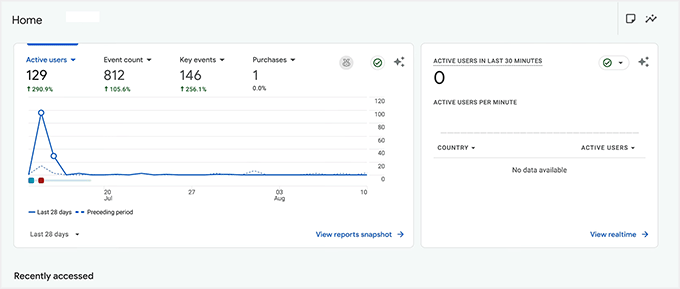
You can also mark specific events as conversions inside Google Analytics, so they appear in your main reporting dashboard.
While this method is more flexible, it can feel a bit technical for beginners, which is why many WordPress users prefer using MonsterInsights instead.
What to Improve if Conversions are Low
If your traffic looks good but conversions are low, here are some practical improvements I’ve seen work well across WordPress sites:
- Add Clear CTAs: Guides visitors to the next step instead of leaving them unsure what to do.
- Improve Content Intent: Makes sure your page matches what users are actually looking for when they land on it.
- Simplify Navigation: Helps users find what they need faster, without friction or confusion.
For more tips and how to implement them, check out our ultimate guide on conversion rate optimization.
💡Simple Monthly SEO Checklist
Now that you know what to look for, I suggest creating a simple monthly SEO check-in for your WordPress site.
This doesn’t need to be complicated or time-consuming, just a quick routine to make sure your SEO is moving in the right direction.
Every month, take a few minutes to review the key signals covered in this guide:
- Is my organic traffic growing?
- Are my pages properly indexed?
- Are my keyword rankings improving over time?
- Are people actually clicking my search results (CTR)?
- Are visitors taking action on my site (conversions)?
If most of these are trending upward, then your SEO is working well. If one or two are not improving, that’s your signal to focus on that specific area next. This routine takes less than 20 minutes a month but provides the clarity you need to keep your SEO strategy on track.
For a complete step-by-step system, I suggest taking a look at our ultimate WordPress SEO guide.
How Long Does SEO Take to Work?
One of the most common questions I hear from WordPress site owners is: how long does SEO actually take to start working?
The honest answer is that SEO is not instant. It builds up gradually over time as search engines like Google crawl, understand, and trust your content.
To set realistic expectations, here’s a simple timeline of what most sites typically experience:
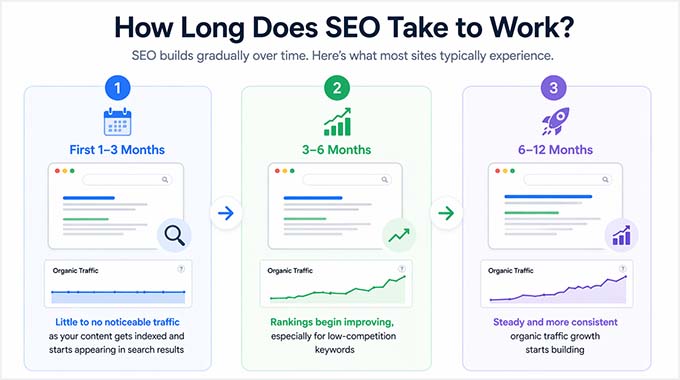
Keep in mind that these timelines can vary depending on your niche, competition, and how consistently you publish and optimize content.
The most important thing to remember is this: slow progress is completely normal in SEO—consistency matters far more than speed.
Small improvements over time add up to strong long-term results. For a deeper breakdown, see our guide on how long website SEO takes to show results.
Frequently Asked Questions About Website SEO
Even after checking all the key SEO signals, you might still have a few questions about how to know if your WordPress SEO is really working.
That’s completely normal because SEO can feel a bit confusing at first, especially when results don’t show up right away.
Below are some of the most common questions beginners ask, along with simple answers to help you stay on track.
How do I know if my WordPress SEO is improving?
You’ll know your WordPress SEO is improving when you see steady growth in organic traffic, better keyword rankings, and increasing impressions in search results on Google Search.
Even small upward trends over time are a strong sign that your SEO is moving in the right direction.
Why am I not getting traffic from SEO yet?
If you’re not getting traffic yet, it’s usually because your site is either still new or your pages are not fully indexed in search engines. In many cases, it just takes time for search engines to discover and rank your content properly.
Can I check WordPress SEO for free?
Yes, you can check your WordPress SEO for free using Google Search Console. It gives you insights into indexing, keyword performance, and search visibility. This makes it a powerful starting point for beginners.
What is more important in SEO: traffic or conversions?
Conversions are more important because they show real results from your SEO efforts. While traffic helps bring visitors to your site, conversions tell you whether those visitors are actually taking meaningful actions like signing up or making a purchase.
I hope this article helped you learn if your WordPress SEO is actually working. You may also want to see our guide on tracking SEO changes on your WordPress site and our list of WordPress site settings that are critical for SEO success.
If you liked this article, then please subscribe to our YouTube Channel for WordPress video tutorials. You can also find us on Twitter and Facebook.
The post How to Check If Your WordPress SEO Is Actually Working first appeared on WPBeginner.
Dr Crash says: